Club Manager · Camps
Volleyball camp registration, from sales page to schedule
Build your camp once in Club Manager and it gets its own sales page, bookable on the web and in the Volley World App. Campers pick their days, room and extras, answer your form and pay in full or with a deposit; you follow every booking, payment and answer in one cockpit and publish groups and the schedule to their phones.

From first draft to last training
Everything a camp needs, from booking to the week on court
A sales page for every camp
Dates, place and price, days and sessions, group size, level and seats, schedule, coaches, stay, map and Q&A. The booking and cancellation terms are written from your settings. Share it by link, WhatsApp, email or QR code and see which channel brings visits.
Prices, deposits and balances
One base price for the whole camp or per day, early-bird or last-seats price rules and promo codes. Take the full amount at booking or a fixed or percentage deposit; the rest is due the number of days before that you choose, with reminders 14, 7 and 1 day ahead that carry a payment link.
Your form, before payment
One tap creates the suggested camp form: T-shirt size, level, roommate wish, allergies or diet, emergency contact, and arrival and departure. Edit it or attach one of your own, and campers answer it in the booking steps.
Waitlist and minimum numbers
When the camp or a day is full, the button turns into a waitlist; when a place frees up, the first person gets an offer for 24 hours. Set a minimum and a decision date: Volley World App tells you where you stand, and whether to go ahead or cancel is always your decision.
One cockpit for bookings and money
Every booking with its status, payments and answers. Record cash or bank transfers, message campers by status with push and email, and export lists for the hotels, the kitchen with diets and allergies, merch sizes and arrivals.
Groups by level, schedule on the phone
Propose groups by level and sign-up date, with roommates kept together, and adjust them by dragging. Build the week schedule with courts and staff, then publish: campers see it in the app and get a reminder before each session.
Forms
The questions you need, answered before day one
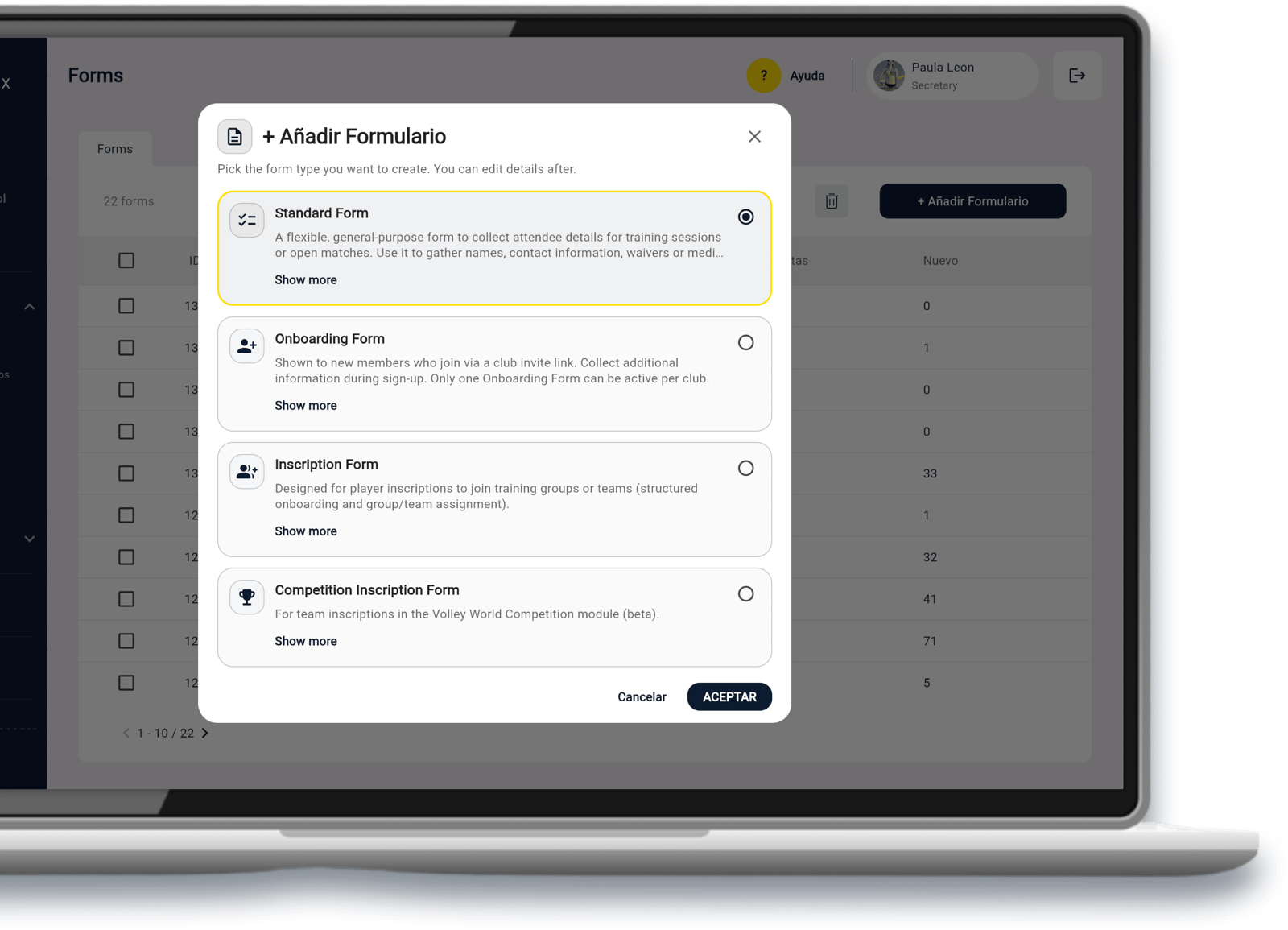
The camp form is built like any other Club Manager form. Answers sit next to each booking and export to CSV, so T-shirt sizes, allergies, emergency contacts and arrivals are ready before the week begins.
See the camps clubs have already published in the public camp directory: camps.volleyworldapp.com
How to run registration for your camp
- Step 1
Create the camp
Eight steps in the editor: cover and story, dates and place, attendance and places, stay, pricing, coaches, payment and policy, form and extras.
- Step 2
Publish and share
The camp goes live on its sales page and in the app. Share it by link, WhatsApp, email or a QR code for posters.
- Step 3
Take bookings and run the week
Follow bookings, deposits and answers in the cockpit, then publish groups and the schedule so every camper knows where to be.
Questions about camp registration
- Do campers need an account?
- Yes, booking needs a Volley World App account. Signing in takes an email code, Google or Apple, with no password.
- Can parents book for their children?
- Yes. In the app, a parent books and pays for a child linked to their family account. On the web sales page, a booking is always for the person signed in.
- Can campers pay a deposit and the rest later?
- Yes. Set the deposit as an amount or a percentage and how many days before the camp the rest is due. Campers get reminders with a payment link, and cash or bank transfers are recorded in the cockpit.
- What happens if someone cancels?
- Your cancellation policy is on the sales page before anyone pays. When you cancel a booking, the cockpit shows what your policy refunds, and you can keep it or choose another percentage. Card payments are refunded through Stripe; cash payments you hand back yourself.
- Which plan do I need?
- The camp editor with its sales page and online booking is part of the Community and Club PRO plans. Club PRO includes unlimited camps; Community includes a limited number of camps and tournaments per month and can add 5 extra credits for €50. Stripe must be connected to take payments.

The platform specialized in volleyball club management
Start managing your club without complications
Start for freePrefer to talk first?